Effortlessly Transfer Your Data to a New iPhone: A Complete Guide
Getting a new iPhone is always exciting. Whether you’re switching to an upgraded model or making the Apple plunge for the first time, one question often looms large: “How do I transfer my data to my new iPhone?” This guide takes the mystery out of that process, offering you clear steps and options to ensure your transition is smooth and stress-free.
📱 Why Proper Data Transfer Matters
Your iPhone holds a treasure trove of personal data, from cherished family photos to essential apps and crucial work emails. Transferring this data accurately means you can pick up right where you left off without missing a beat. Ensuring a smooth transfer helps preserve your digital integrity and gives you peace of mind.
Choosing Your Transfer Method
Let's explore the multiple ways you can move your data to a new iPhone, each designed to fit different preferences and situations.
Method 1: Quick Start
The Quick Start option is Apple's way of making life easier for iPhone users. This method uses your old iPhone to set up your new device automatically.
How to Use Quick Start:
- Start both devices: First, make sure Bluetooth is enabled on both the old and new iPhones.
- Bring them close together: A Quick Start screen will appear on your old iPhone, offering you the option to set up the new device.
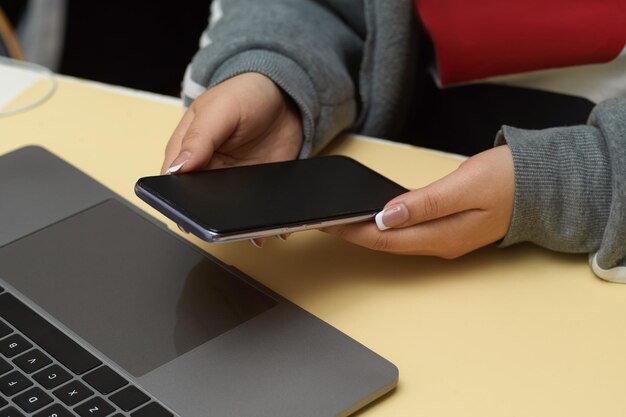
- Scan the animation: Once the option appears, position the old iPhone over the new iPhone so that the camera can scan the animation.
- Finish on the new iPhone: You’ll be prompted to enter your current device's passcode, then follow the on-screen setup steps.
This method is seamless for those sticking with iPhones. However, if you're transferring from a different phone brand, you'll need to consider alternative methods.
Method 2: iCloud Backup
Using an iCloud Backup is a route favored for its simplicity and wireless convenience. Here’s how you can do it:
Steps to Transfer Data via iCloud:
- Backup the old device: On your old iPhone, go to Settings > [your name] > iCloud > iCloud Backup, and tap Back Up Now.
- Turn on the new device: Once your data is backed up, power on the new iPhone.
- Restore from iCloud: During the setup process, you’ll be asked if you want to restore from iCloud. Select the backup of your previous device.
💡Tip: Make sure your iCloud storage capacity can accommodate your backup. A Wi-Fi connection is required for the transfer.
Method 3: iTunes or Finder
For those who prefer traditional methods, iTunes (Windows) and Finder (macOS Catalina and later) provide dependable options. This method requires a computer but offers more control over the backup process.
Transferring with iTunes/Finder:
- Connect the old device to your computer: Launch iTunes or open Finder, depending on your OS.
- Create a backup: Choose your device and click Back Up Now. Be sure to encrypt the backup if you want to transfer health and activity data.
- Move to the new device: After backup, power on your new iPhone and connect it to the computer.
- Restore via iTunes/Finder: Choose Restore Backup and select the correct backup file.
This method is excellent for users with large amounts of data or those wishing to make encrypted backups.
Things to Consider Before Transferring
Compatible Software Versions
Before diving into data transfer, ensure both of your devices are running compatible iOS versions. A software mismatch can cause transfer issues, leaving your new phone less than fully functional.
Prepare Your Old iPhone
- Unpair Apple Watch: If you have an Apple Watch, make sure to unpair it from your old phone.
- Back Up Messages and Photos: Check your settings for Messages and Photos to ensure they’re included in backups.
Wi-Fi and Power Requirements
Transfers, especially large ones, rely heavily on a strong Wi-Fi connection and sufficient battery life on both devices. Ensure both phones are charged and connected to Wi-Fi to avoid interruptions during the process.
Troubleshooting Common Issues
Even with the clearest instructions, sometimes things don’t go as planned. Here are solutions to some common hiccups during iPhone data transfers:
- Wi-Fi Disconnections: Occasionally, Wi-Fi can drop during transfers, particularly with large data volumes. Restart your router or move closer to the hot spot to remedy this.
- Insufficient iCloud Storage: If met with an "Out of Storage" warning, consider upgrading your iCloud plan or selectively reducing the amount of data you back up.
- Transfer Pauses or Fails: Ensure your software is up to date. Restart both devices if freezes occur, then try the transfer again.
📋 Quick Summary for Easy Reference
Here’s a quick summary to help you remember the data transfer steps:
- Quick Start: Easiest, uses two devices; perfect for existing iPhone users.
- iCloud Backup: Wireless, requires sufficient iCloud storage.
- iTunes/Finder: Wired and computer-based; offers encrypted backup.
🗂️ Pro Tip: Always back up your old device before starting any transfer to safeguard against data loss.
Final Insights
Getting a new iPhone should feel exciting, not stressful. With these methods, you’re now fully equipped to transfer your data with confidence and ease. Each method has its strengths, and choosing the right one depends on your personal preferences and setup needs. Whether you opt for Quick Start, iCloud, or iTunes/Finder, the key is preparation and following the steps carefully. Enjoy your new device and all the possibilities it brings!
Discover More
- How Can I Transfer Apps From Iphone To Ipad
- How Can I Transfer a Video From Iphone To Computer
- How Can I Transfer Bookmarks From One Computer To Another
- How Can I Transfer Contacts From Iphone To Iphone
- How Can I Transfer Contacts From One Iphone To Another
- How Can I Transfer Data From Iphone To Android
- How Can I Transfer Data From Iphone To Iphone
- How Can I Transfer Data From One Laptop To Another
- How Can I Transfer Files From Android To Pc
- How Can I Transfer Files From Pc To Pc