Effortlessly Transfer Photos from Your Android Phone to Your Computer
Have you ever faced the dreaded "storage full" notification on your Android phone just when you were about to capture a memorable moment? It’s a common challenge for many Android users, leading them to seek practical solutions for transferring photos from their phone to their computer. Whether you're clearing space or safeguarding your memories, learning how to seamlessly transfer photos between devices is invaluable. Let’s explore some simple, effective methods to make this process smooth and hassle-free.
📁 Transferring Photos via USB Cable
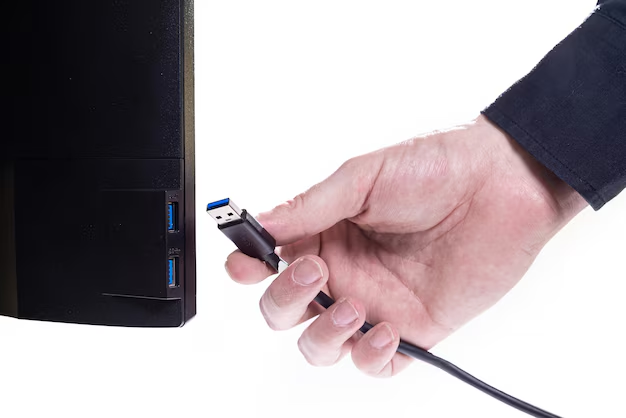
Using a USB cable remains one of the most straightforward and reliable methods for transferring photos. This method ensures a direct connection between your Android device and computer, making the transfer process both secure and relatively fast.
Steps to Transfer Photos Using a USB:
- Connect Your Device: Plug your Android phone into your computer using a compatible USB cable.
- Select Transfer Mode: You'll receive a notification on your phone. Select "File Transfer" or "MTP" mode.
- Access Your Device: On your computer, open ‘File Explorer’ on Windows or ‘Finder’ on Mac. Locate your Android device listed as a connected drive.
- Drag and Drop: Navigate to the ‘DCIM’ (Digital Camera Images) folder on your phone. Choose the photos you wish to transfer and drag them to your computer's desired folder.
- Eject Safely: Once done, ensure you eject your phone safely before disconnecting the USB cable.
Pro Tip: Always ensure your phone screen is unlocked before starting the transfer, as locked phones might not allow data transfer modes.
☁️ Using Cloud Services
Embracing cloud storage services offers an excellent way to transfer and back up photos without physical connections. Services like Google Photos, Dropbox, or OneDrive provide sufficient storage and accessibility across multiple devices.
Transferring Photos via Google Photos:
- Install and Open: Ensure Google Photos is installed and open the app.
- Backup: Enable the "Backup & Sync" option. This uploads your photos to the Google Photos cloud.
- Access from Computer: Log in to the Google Photos website on your computer using the same Google account, where you can download the photos as needed.
Pros and Cons:
- Pros: Access photos anywhere, no USB needed, automatic backups.
- Cons: Requires internet connection, may use data, limited free storage.
🌐 Transfer via Bluetooth
While not as fast as USB or cloud transfers, Bluetooth provides a handy wireless option for those who prefer cable-free solutions or lack internet access.
Steps to Transfer Photos via Bluetooth:
- Pair Devices: Activate Bluetooth on both devices and pair them by enabling Bluetooth visibility.
- Select Photos: Go to ‘Photos’ on your Android device, select the images you want to transfer, and choose ‘Share’ via Bluetooth.
- Receive on Computer: Accept the incoming transfer request on your computer to start receiving files.
Reminder: Bluetooth speed can be considerably slower compared to other methods, and it's usually best for smaller file quantities.
📥 Utilizing Email Services
If you're transferring just a few photos, emailing them to yourself is a quick and effective approach.
Email Photo Transfer:
- Open Email App: Use the email app on your Android.
- Compose Email: Compose a new message, attach the desired photos, and send it to your email account.
- Download on Computer: Open the email on your computer and download the attachments.
Considerations: Suitable for a small number of photos due to file size limitations on many email services.
🔄 Using Instant Messaging Apps
Messaging apps like WhatsApp or Telegram can also facilitate photo transfers, especially in smaller batches.
Transferring Photos via Instant Messaging:
- Upload to Self-Chat: Use a feature like WhatsApp’s “starred messages” or Telegram’s “saved messages” to send the photos to yourself.
- Access on Desktop App: Use the desktop version of the messaging app to download the files onto your computer.
Note: Check app settings to ensure images are not compressed if high quality is a priority.
🧩 Third-Party Transfer Software
Several third-party applications are designed to bridge the gap between Android devices and computers, making file transfers efficient and straightforward.
Popular Software Options:
- AirDroid: Known for its wireless management capabilities, AirDroid allows you to manage and transfer files between devices efficiently.
- Pushbullet: Offers quick sharing of files, links, and other data between your phone and computer over a local network.
Benefits: User-friendly interfaces and additional functionalities like text messaging from the computer.
📜 Quick Summary Guide
Here’s a concise guide with actionable steps and reminders for transferring photos:
| 🔍 Method | 🚀 Pros | ⚠️ Cons | 📌 Use Case |
|---|---|---|---|
| USB Cable | Fast and direct | Requires cable | Bulk transfers and quick access |
| Cloud Services | Wireless backup | Needs internet and storage space | Regular backups and remote access |
| Bluetooth | Fully wireless | Slower, short-range | Small file transfers without internet |
| Simple and convenient | Email size limitations | Few photos, quick sharing | |
| Instant Messaging | Easy device integration | Potential quality loss | Small, causal transfers |
| Third-Party Apps | Feature-rich | Some have free limits | Enhanced management and versatility |
Wrapping It Up
Transferring photos from your Android phone to your computer need not be a daunting task. With various methods—cabled, wireless, or through the cloud—you can choose what fits best with your needs and setup. Whether aiming for speed, convenience, or security, there’s a solution that aligns with every user’s preference. Explore these avenues and ensure your precious memories are well-preserved beyond your Android device. 📸💻
Discover More
- How Can I Transfer Apps From Iphone To Ipad
- How Can I Transfer a Video From Iphone To Computer
- How Can I Transfer Bookmarks From One Computer To Another
- How Can I Transfer Contacts From Iphone To Iphone
- How Can I Transfer Contacts From One Iphone To Another
- How Can I Transfer Data From Iphone To Android
- How Can I Transfer Data From Iphone To Iphone
- How Can I Transfer Data From One Laptop To Another
- How Can I Transfer Files From Android To Pc
- How Can I Transfer Files From Pc To Pc