Seamlessly Transfer Your Contacts: From iPhone to iPad
In the world of digital connectivity, staying effortlessly linked with our contacts is essential. Whether you’re setting up a new iPad or simply want to ensure your data moves seamlessly between devices, transferring your contact list from an iPhone to an iPad is a task most Apple enthusiasts encounter. This guide will walk you through the most efficient ways to achieve this task, ensuring a smooth transition.
📱 Why Transfer Contacts Between Your iPhone and iPad?
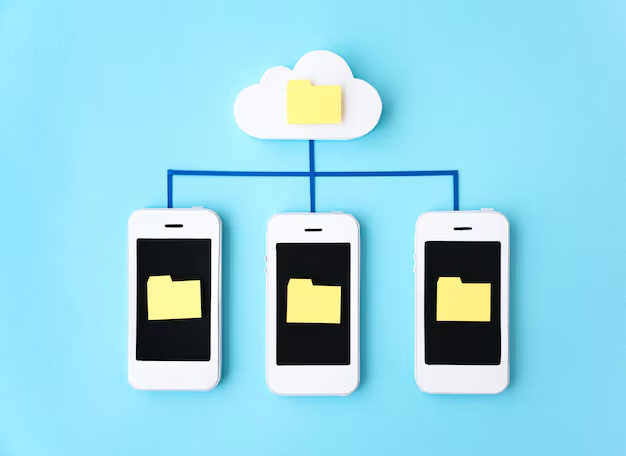
With Apple leading in ecosystem integration, having synchronized devices makes daily operations far more convenient. By transferring your contact list, you gain:
- Unified Information: Keep the same contact details on all devices, allowing you to reach people effortlessly no matter where you are.
- Backup Security: Mitigate the risk of losing important connections by having consistent data across your gadgets.
- Ease of Use: Enable features like FaceTime and iMessage on your iPad using the same information available on your iPhone.
Now, let's dive into the methods available for transferring contacts, ensuring you pick what best suits your needs.
📤 Method 1: Using iCloud to Sync Contacts
Step-by-Step Guide
Ensure iCloud is Enabled: First, check if iCloud is activated on your iPhone:
- Go to Settings > Tap on your name > iCloud.
- Ensure the Contacts toggle is switched on.
Check iCloud on Your iPad: Repeat the same procedure on your iPad to enable iCloud Contacts sync:
- Settings > Tap your name > iCloud.
- Turn on the Contacts toggle.
Allow Time for Sync: Make sure both devices are connected to Wi-Fi and given a few minutes, the contacts will automatically sync across devices.
Advantages of Using iCloud
- Automatic Updates: Any changes made on one device automatically update on the other.
- Effortless Setup: No need for additional downloads or services, provided iCloud is configured.
🔄 Method 2: Transfer Using iTunes or Finder
If you prefer using your computer, iTunes (or Finder on macOS Catalina and later) offers a straightforward option.
Steps for iTunes/Finder:
- Connect Your iPhone to Computer: Use a USB and open iTunes or Finder.
- Backup Your iPhone:
- In iTunes, select the device icon > Info tab > Check “Sync Contacts” > Apply.
- Connect Your iPad to Computer:
- Sync your iPad with the same steps ensuring the "Sync Contacts" option is selected.
Benefits of This Method
- Local Backup: You have a physical backup stored on your computer.
- Connectivity Flexibility: Useful if iCloud is not an option due to connection limitations.
📧 Method 3: Using Third-Party Apps
There is a range of third-party apps available designed specifically to transfer contacts between devices. Some popular choices are:
- My Contacts Backup
- CopyTrans Contacts
How to Use These Apps:
- Download and Open App on iPhone: Follow the app instructions to create a backup file, often sent to your email.
- Open Email on iPad: Download the attachment and import it to your iPad’s contacts.
Third-Party Benefits
- App-Specific Features: May offer additional features like merging duplicates or bulk editing.
- Cross-Portal Transitions: Often support other platforms if needed.
🔗 Related Subtopics: Enhancing Device Connectivity
Syncing Other Data Types
Beyond contacts, syncing other types of data can enhance the interconnectivity of your Apple devices. Consider:
- Calendars and Events: Keep your schedule consistent.
- Notes: Access your thoughts wherever you are.
- Photos and Videos: Use iCloud Photos for seamless sharing and storage.
Troubleshooting Common Issues
Whenever you're dealing with multiple devices, issues can arise. Here are some common problems and fixes:
- Contacts Not Syncing: Verify both devices are logged into the same Apple ID. Restarting devices often resolves inconsistencies.
- Unexpected Duplicates: Third-party apps sometimes help streamline multiple entries.
📌 Summary Section: Key Takeaways
🌟 Quick Tips to Remember
- iCloud Sync: Ideal for seamless and ongoing transfers.
- iTunes/Finder: Great for a one-time comprehensive backup.
- Third-Party Apps: Useful if facing connectivity challenges or needing additional features.
🔧 Next Steps
- Test each method and find what suits your tech habits best.
- Ensure both devices are regularly updated to the latest software for optimal operation.
- Explore additional syncing options for a fully integrated digital life.
The task of transferring contacts from your iPhone to your iPad doesn’t have to be daunting. With these straightforward methods at your disposal, you’re well-equipped to maintain a consistent, functional digital network. 🧭 Happy syncing!
Discover More
- How Can I Transfer Apps From Iphone To Ipad
- How Can I Transfer a Video From Iphone To Computer
- How Can I Transfer Bookmarks From One Computer To Another
- How Can I Transfer Contacts From Iphone To Iphone
- How Can I Transfer Contacts From One Iphone To Another
- How Can I Transfer Data From Iphone To Android
- How Can I Transfer Data From Iphone To Iphone
- How Can I Transfer Data From One Laptop To Another
- How Can I Transfer Files From Android To Pc
- How Can I Transfer Files From Pc To Pc