Seamless Guide to Transferring Files from One Laptop to Another
In today's fast-paced digital world, transferring files between laptops has become a common necessity, whether you're upgrading to a new device, collaborating on projects, or just need to share data swiftly. Fortunately, there are multiple ways to make this process as simple as possible, each suited to different needs and preferences. In this guide, we explore various methods to seamlessly transfer files between laptops, ensuring that you can choose the best option for your specific situation.
📂 Selecting the Right Method for File Transfer
Choosing the right method depends on several factors including the size and number of files, internet access, and the operating systems of the laptops involved. Here’s an overview of some popular methods:
- External Storage Devices
- Cloud-Based Solutions
- Direct Cable Connection
- Network and Wi-Fi Transfers
External Storage Devices
USB Flash Drives and External Hard Drives
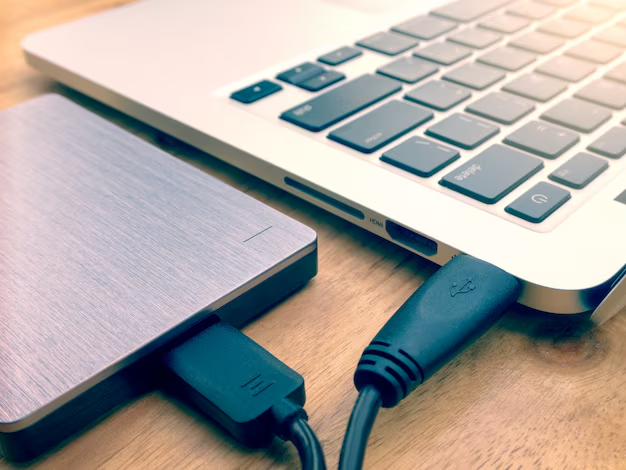
One of the simplest and most familiar methods involves using a USB flash drive or an external hard drive. This method is particularly useful if you have large files or a substantial amount of data to transfer.
- Ease of Use: Just plug the drive into your source laptop, copy the files, and then connect it to the destination laptop to paste them.
- Compatibility: USB drives are widely compatible across different operating systems.
- Capacity: Choose a drive with enough storage to handle your files, ensuring you don’t run into capacity issues mid-transfer.
Cloud-Based Solutions
Google Drive, Dropbox, OneDrive, and More
Cloud storage services offer an easy and flexible way to transfer files, provided you have a stable internet connection.
- Convenience: Upload files to the cloud service, then download them onto the new laptop. This is especially useful for transferring large files without the need for physical devices.
- Access Anywhere: Your files become accessible from any device with internet access, adding an extra layer of convenience.
- Collaboration: Easily share files with multiple users, enabling collaborative work in real-time.
Direct Cable Connection
Transfer Cables and Ethernet
Using a transfer cable is a direct method that can be quick and efficient.
- Fast Transfer Rates: Suitable for large data sizes due to higher transfer speeds compared to some other methods.
- Set Up: Requires specific cables (e.g., USB to USB, USB-C, Ethernet) and may involve installing driver software.
- Reliability: A direct connection is less susceptible to interference, providing a reliable transfer.
Network and Wi-Fi Transfers
Creating a Local Network
If both laptops are on the same network, you can transfer files via a local network.
- Home and Office Networks: Perfect for file transfers within the same premises using shared folders or direct IP address entry.
- Wi-Fi Direct: A feature available on some laptops, allowing direct device-to-device connections over Wi-Fi.
- Configuration: Involves setting up file sharing settings and permissions, offering a versatile transfer method once configured.
💽 Delving Deeper Into Each Method
Now, let's delve deeper into each method, offering step-by-step guidance, pros, and cons.
External Storage Devices – Step by Step
- Connect the Device: Insert the USB drive or external hard drive into your source laptop.
- Copy Files: Navigate to the files or folders you wish to transfer, right-click, and select 'Copy'.
- Paste Files: Open the external device, right-click, and select 'Paste'.
- Transfer to New Laptop: Eject the device safely and connect it to the destination laptop. Repeat the copy-paste process to transfer files.
Pros:
- Simple and straightforward.
- Doesn't require internet access.
Cons:
- Limited by storage capacity.
- Risk of USB drive failure or corruption.
Cloud-Based Solutions – Step by Step
- Upload Files: Sign into your cloud service account, and upload the files from your source laptop.
- Download Files: Log in from the destination laptop and download the files.
Pros:
- Backed up and accessible anywhere.
- Easy to share with others.
Cons:
- Requires a good internet connection.
- Limited storage based on service plans, potential paid upgrades necessary.
Direct Cable Connection – Step by Step
- Connect Devices: Use the transfer cable to connect both laptops.
- Install Software: If required, install any necessary software or drivers.
- Transfer Files: Use the software to select and transfer the desired files.
Pros:
- High-speed transfer rates.
- Secure direct connection.
Cons:
- Requires compatible cables and sometimes additional software.
- Less portable.
Network and Wi-Fi Transfers – Step by Step
- Same Network: Ensure both laptops are connected to the same local network.
- Share Folders: On your source laptop, set up file sharing by selecting folders and adjusting permissions.
- Access on New Device: Open a file explorer window on the destination laptop, access the network and transfer files.
Pros:
- No need for physical devices.
- Ideal for regular transfers on the same network.
Cons:
- Initial setup can be complex.
- Dependent on network speed and access control.
📌 Practical Tips for Efficient File Transfers
Here's a quick summary of practical tips to make your file transfer smooth and efficient:
- Organize Your Files: Before transferring, take the time to organize your files into folders. This makes it easier both during and after the transfer.
- Back Up Vital Data: Always back up important files on the source laptop to prevent data loss during transfer.
- Consider Security: Encrypt sensitive files, especially when using cloud services or networks.
- Check Compatibility: Ensure that external drives and cables are compatible with both laptops.
- Update Software: If using transfer software, make sure it is up-to-date to avoid compatibility issues.
🚀 Final Thought: Choose with Confidence
With various methods at your disposal, transferring files between laptops can be a seamless process. Evaluate the options based on your needs, the size of the files, and available resources. Whether you're upgrading devices or collaborating remotely, these strategies provide reliable solutions to keep your data flowing smoothly. Confidently pick the approach that aligns with your workflow, ensuring a hassle-free transition every time.
Discover More
- How Can I Transfer Apps From Iphone To Ipad
- How Can I Transfer a Video From Iphone To Computer
- How Can I Transfer Bookmarks From One Computer To Another
- How Can I Transfer Contacts From Iphone To Iphone
- How Can I Transfer Contacts From One Iphone To Another
- How Can I Transfer Data From Iphone To Android
- How Can I Transfer Data From Iphone To Iphone
- How Can I Transfer Data From One Laptop To Another
- How Can I Transfer Files From Android To Pc
- How Can I Transfer Files From Pc To Pc