Seamless Laptop Memory Transfer: A Step-by-Step Guide 🖥️
Imagine upgrading to a sleek new laptop, but transferring all your cherished files and data feels daunting. Fear not! Moving memory, whether it be RAM or your internal storage data, can be a smooth process with the right guidance. This article will walk you through every crucial step to effortlessly transfer memory from one laptop to another, boosting your computing experience.
Importance of Transferring Memory Efficiently
When you upgrade or replace an old laptop, transferring your files, settings, and even RAM (if compatible) becomes vital. Efficient memory transfer ensures continuity, so you don't lose precious time or important files. It's not just about preserving data but optimizing your new machine for peak performance.
Understanding Laptop Memory Types
RAM (Random Access Memory): Often upgraded to improve performance. While you can't exactly transfer RAM modules from one laptop to another due to compatibility issues in most cases, understanding its role can guide upgrade choices.
Internal Storage: This is primarily what you'll be transferring. It includes everything stored on your hard drive or SSD—documents, media, and installed programs.
Preparing for the Transfer
Before diving into the memory transfer process, a little prep work can save you from potential headaches.
Backup First, Always!
Backing up data is crucial. Use an external hard drive, cloud services, or both. This step ensures you have a secure copy of your data should anything go awry.
Check Compatibility and Hardware
Scoping Out RAM: If you plan to reuse existing RAM, check if the new laptop motherboard supports it. This typically involves verifying the size, type (DDR3, DDR4, DDR5), and speed.
Storage Interface: Ensure your new laptop supports the storage interface used by your old one—SATA for traditional HDDs/SSDs and NVMe for newer SSDs.
Transferring Files and Software
With backups secured, hardware compatibility verified, and a clear goal, let's tackle the actual data transfer.
Using Transfer Cables and Adapters 📎
One efficient method involves a transfer cable, connecting two laptops directly:
- Install necessary software: Often bundled with the cable or downloadable, this software facilitates file transfer.
- Connect devices: Plug in the transfer cable into both laptops and follow software instructions to start the transfer.
Cloud Services and External Drives 🌐
Cloud Storage Solutions: Services like Google Drive, Dropbox, or OneDrive can effortlessly sync files across devices. Simply upload data from the old laptop and download it onto the new one.
External Storage Drives: These are ideal for larger data sets. Use the old laptop to copy files onto an external drive and transfer them to the new laptop.
Network Transfer
For homes or offices with robust networks, setting up a local file-sharing option can be practical.
- HomeGroup or network sharing: Enable file sharing between devices in the same network, allowing seamless data movement.
- Use synchronization software: Tools like Syncthing can automatically sync files between devices on the same network.
Software and Settings Transfer
Beyond files, you'll want to maintain application settings and user environment:
- Built-in Tools: Utilize Windows’ "PCmover" or MacOS’ "Migration Assistant" to transfer settings and applications directly.
- Manually reinstall software: For some applications, you may need to reinstall on your new system. Always keep installation files or service credentials handy.
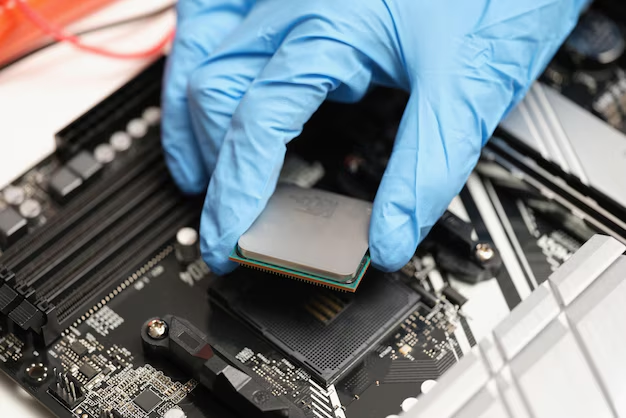
Transferring RAM: Considerations and Steps
While transferring RAM is less common due to compatibility limitations, it’s worth discussing how to approach it, especially if upgrading rather than merely transferring data.
Identifying Compatible RAM
- Type & Size Matters: Ensure the RAM type (e.g., DDR4) and size match what your new laptop can accommodate. Check the laptop’s specifications for supported configurations.
Physically Moving RAM Sticks
Power Off and Unplug: Safety first—ensure the devices are completely powered down and unplugged.
Ground Yourself: Static electricity can damage components, so use an anti-static wrist strap.
Access the RAM Slot: Consult your laptop manual to locate and open the RAM compartment.
Swap Carefully: Remove old RAM from the new laptop (if needed), and insert the compatible modules from your old laptop.
Post-Transfer Checks 🛠️
Once the physical and digital migrations are complete, performing some checks can help confirm successful transfer:
- Verify Data Integrity: Check random but crucial files to ensure they transferred correctly.
- Test Applications: Open critical software to verify functionality with the new setup.
- Monitor Performance: Evaluate if the new laptop indeed delivers expected performance boosts.
Troubleshooting Common Pitfalls
Every tech journey comes with challenges. Here are solutions to common issues during memory transfers:
- File Conflicts: Keep both devices and backup sources organized to prevent overwriting important data.
- Halted Transfers: Restart the process. Ensure device drivers and transfer software are up-to-date.
- Hardware Incompatibility: Always double-check laptop specifications if RAM or storage isn't recognized.
Quick Tips for a Smooth Transition 💡
- 🔍 Keep it organized: Label folders and drives to prevent mishaps during the transfer.
- 🔌 Stay connected: Ensure power sources are stable, especially during long transfers.
- ❗ Use technician support: When in doubt, tech support can provide guidance, especially for hardware-related queries.
Summary Snapshot: Transfer at a Glance 📋
Transferring memory from one laptop to another can seem daunting initially. However, with careful planning and the right approach, it becomes an empowering step towards a more efficient and enjoyable digital experience. Embrace the journey with confidence, knowing that your data and device capabilities are both set up for success.
Discover More
- How Can I Transfer Apps From Iphone To Ipad
- How Can I Transfer a Video From Iphone To Computer
- How Can I Transfer Bookmarks From One Computer To Another
- How Can I Transfer Contacts From Iphone To Iphone
- How Can I Transfer Contacts From One Iphone To Another
- How Can I Transfer Data From Iphone To Android
- How Can I Transfer Data From Iphone To Iphone
- How Can I Transfer Data From One Laptop To Another
- How Can I Transfer Files From Android To Pc
- How Can I Transfer Files From Pc To Pc